If you edit images regularly, you know this pain. Remove background on one site. Open another tool for quality. Wrong file format? Now you’re hunting for a converter too. Four websites later, you’re done with one image.
I’ve lost count of how many times this happened to me.
The tools aren’t bad. Most work fine on their own. The real problem is jumping between sites for one simple edit. Etsy product photos. Print-on-demand designs. Blog graphics. Social media posts. The switching adds up fast.
So I went looking for something simpler.
I found Creative Fabrica Studio Desktop App. It packs free AI tools for creators into one desktop app. I wanted to know if it could cut out the tab-switching.
One place instead of five tabs. That’s what I was testing for.
The Everyday Problems Creators Face
AI made image editing easier. But the workflow still feels scattered.
Say you have a product photo. It needs a few quick fixes before publishing.
- The background looks distracting.
- The image isn’t sharp enough.
- The file format doesn’t work with your editor.
None of these problems are hard alone. Solving them means switching services, though. One tool for this, another for that.
It’s not a big deal once. Do it every day, and it adds up.
Etsy uploads. Print-on-demand designs. Blog posts. Online store management. Every extra step costs you time.
Looking for a Better Workflow
Rather than using several separate tools, I wanted something that could handle the basics without making me leave the same workspace.
That’s what led me to Creative Fabrica Studio Desktop.
The desktop application is available for Windows and Mac and combines creative tools with AI-powered features in one place. Some supported AI tools can run locally after downloading the required model, while other features are available through Creative Fabrica’s platform.
Since I mainly wanted to improve a product image, I decided to keep things simple and focus on two tasks:
- Removing the background.
- Improving the image quality.
Starting with Background Removal
The first image I used had a plain yellow background.
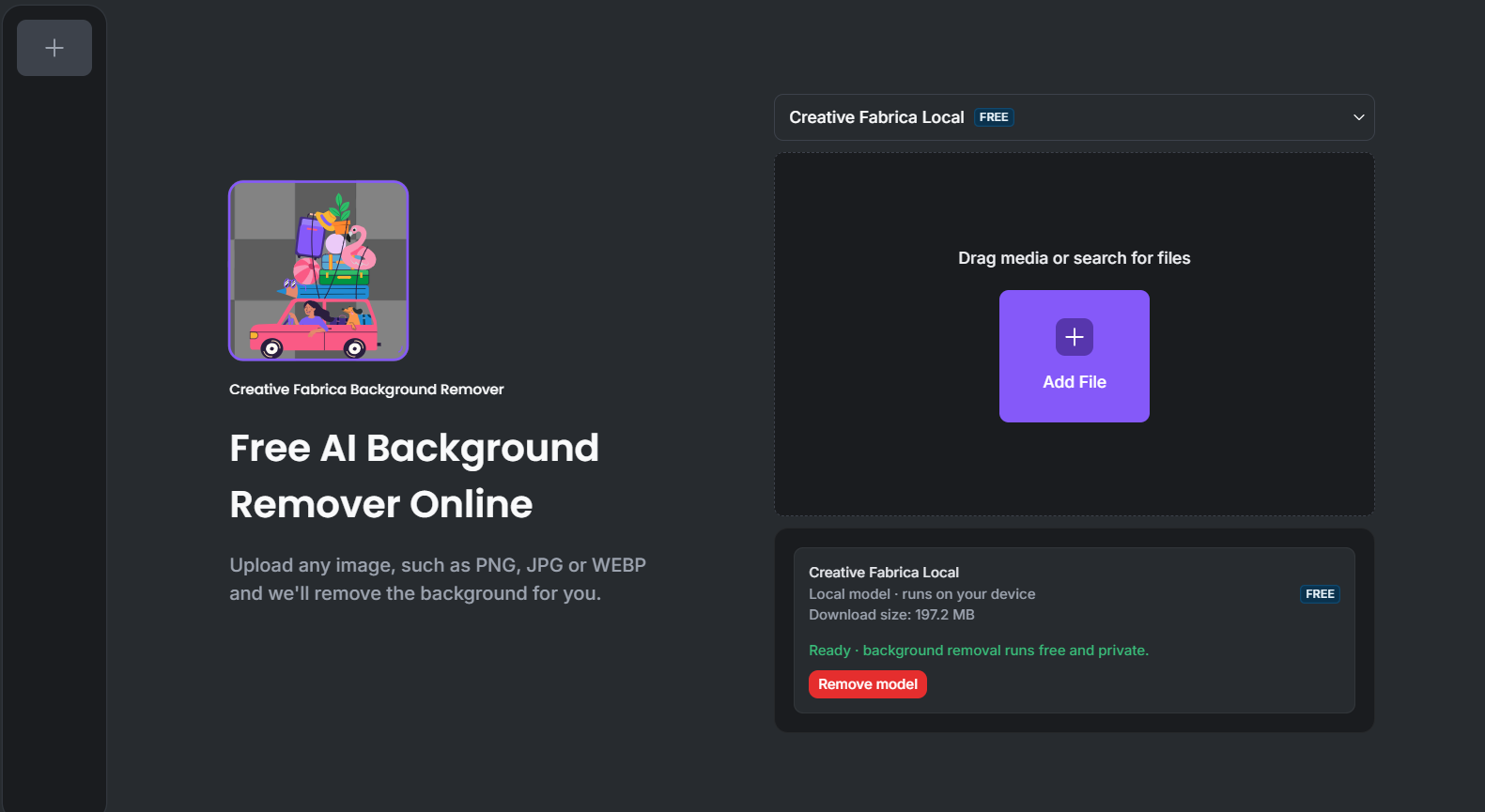
Instead of opening a separate background removal website, I used the built-in Background Remover inside the desktop app.
The result was clean, and the subject remained sharp after the background was removed. There weren’t any obvious rough edges around the object, which is something I usually check after using background removal tools.
For simple product photos, website graphics, and social media images, the result looked ready to use without needing additional cleanup.
Original Image

Background Removed Result

Improving the Image Quality
Once the background was removed, I moved on to the AI Image Upscaler.
The image was successfully upscaled to 4K, and the final version looked much sharper than the original. Small details became clearer, making the image much more suitable for websites and product listings.
Image After Upscaling
What I liked most was how straightforward the process felt. Instead of opening another browser tab and uploading the same image again, I could continue editing inside the same application.
It’s More Than Just an Upscaler
Digging into the desktop app, I saw the Image Upscaler and Background Remover are just the start. Creative Fabrica Studio packs way more in.
The app has several AI tools built for different creative jobs. I didn’t test all of them, so I won’t rate what I haven’t used. But knowing what’s there helps you decide if this fits your workflow.
There’s an AI Image Editor for quick edits. No switching software. If you tweak graphics or product photos often, one workspace saves real time.
There’s an AI Image Generator too. Type a prompt, get an image. Handy for blog graphics, concept art, or social posts when you’re starting from nothing.
Sell products? Check out the AI Mockup Generator. Mockups help customers picture a design before they buy. Instead of placing artwork by hand, this tool speeds that up.
The AI SVG Generator caught my eye too. SVG files run on cutting machines like Cricut. They resize without losing quality, so crafters use them for decals, stickers, paper projects. If crafting is part of your work, having SVG tools built in makes the whole process smoother.
One Platform for Different Types of Creators
My testing stuck to image editing, but Creative Fabrica Studio Desktop goes further than images.
The platform covers video, audio, and 3D too. Depending on what you make, you’ll find tools for video generation and editing, music and sound effects, 3D models, and more.
There’s also stuff for marketing, entertainment, crafting, and team workspaces. I didn’t test these, so I won’t judge how well they work. But it’s nice seeing it all under one roof instead of scattered across ten different services.
One thing I really liked about this app is that the local models are private and totally free of cost.
Who I Think This Workflow Is Best For
After using the desktop app, I think it’s a good fit for people who regularly edit images but don’t want to juggle multiple tools for simple tasks.
It could be useful for:
- Etsy sellers preparing product photos.
- Print-on-demand businesses creating product listings.
- Bloggers who need cleaner featured images.
- Small business owners updating their online stores.
- Social media creators who want sharper visuals.
- Cricut users creating SVG-based projects.
- Designers looking for several creative tools in one place.
Pros
- Simple and clean interface
- Easy image editing workflow
- Free tools with local models
- Sharp 4K upscaling results
- Accurate AI Background Remover
- Good image quality after editing
- Multiple AI tools in one app
- Available for Windows and Mac
Cons
- Sign in required to download local models
- Local model must be downloaded before first use
- Some features require an internet connection
- Performance may vary depending on your computer
Frequently Asked Questions
Can I use Creative Fabrica Studio Desktop if I’m new to AI tools?
Yes. The interface is beginner-friendly, and the tools I tested were easy to find and use.
Which free tools did you personally try?
I tested the local AI Image Upscaler and the AI Background Remover on Windows. I also explored the available tools inside the application, although I didn’t personally test every feature.
Can I use my own images?
Yes. I used one of my own images during testing. You can use any image you want.
Is this useful only for Etsy sellers?
No. While Etsy sellers can benefit from cleaner product photos, the same workflow can also help bloggers, designers, website owners, print-on-demand creators, and small businesses.
Wrapping Up
Years of jumping between editing sites, and finally testing everything from one app felt refreshing.
My hands-on testing covered two tasks: removing a background and sharpening image quality. Both worked well for what I needed. The local AI Image Upscaler gave me a noticeably sharper 4K image once I converted my file to PNG.
What makes Creative Fabrica Studio Desktop worth a look isn’t one standout tool. It’s the idea of one workspace for everything. Even if you only touch a few features regularly, it keeps your editing process organized. No more jumping between five websites for one image.
If your workflow feels scattered right now, having your editing tools in one place is worth considering.